


Shooting Photos in ProRAW Using an iPhone
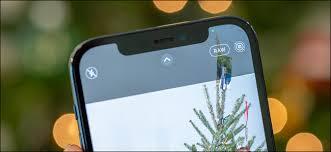
Computational photography is one method used by almost all the smartphones like the iPhone to improve the picture quality. Apple uses features like Night Mode, Deep Fusion, and Smart HDR to take higher-resolution images even if the lighting is poor.
Notably, taking a true RAW picture and using Apple’s smart tech simultaneously isn’t possible. In simpler words, you can take RAW shots, but machine learning won’t be used to improve the image. Fortunately, with the help of ProRAW, you get something near a standard iPhone HEIC, or JPG. Not only this, but you also get a RAW file that holds all the data about what the sensor captured.
ProRAW is an in-house custom format. The result once you’ve captured features a 12-bit RAW DNG file. It means that you can capture images using an iPhone and still edit the same as your preference.
Enabling Apple ProRAW on an iPhone
If you’re keen to know more about using the ProRAW feature on your iPhone, follow the steps mentioned below to enable the same.
- Launch the ‘Settings’ app on your iPhone.
- Locate the ‘Camera’ tab and click on the same.
- iPhone’s camera settings menu will open. You can modify video frame rates, add grids to the preview, etc.
- Click on the ‘Formats’ option at the top of the menu.
- Turn the slider on for the ‘Apple ProRAW’ option.
It is essential to mention that it’ll acquire more space when you take pictures in the ProRAW mode than usual.
How to Capture RAW Photos in the Camera App
Once you’ve enabled Apple ProRAW on your iPhone, you’re all set to take a picture. To do the same, follow the instructions mentioned below:
- Launch the ‘Camera’ app on your iPhone.
- Make sure that you’re in ‘Photo’ mode. If you’re not, tap on the ‘Photo’ tab at the bottom of the screen.
- Locate the ‘RAW’ icon in the top-right corner of the screen.
Note: It will be crossed out.
- Tap on the ‘RAW’ icon, and the cross will disappear. It indicates that further images will be captured in Apple ProRAW.
After clicking all the pictures you want, check for the same in the ‘Photos’ app. You’ll notice that the images captured in Apple ProRAW mode will have a ‘RAW’ label on top of them. On the other hand, if you look for these images in any third-party applications, like Google Photos, the ‘RAW’ label will be missing. To check the same, go to the ‘Properties’ section.
That was easy, right? If you’re one of those who wanted to take RAW pictures, here’s the solution to the same. Also, make sure that your Apple device is updated to 14.3 or higher version. Additionally, iPhone 12 Pro and Pro Max are the only phones that support ProRAW; however, Apple will be expanding its support anytime soon.
Source :- https://directorydocs.com/blog/shooting-photos-in-proraw-using-an-iphone/

 Arabic
 Français
 Español
 Português
 Deutsch
 Türkçe
 Dutch
Dutch
 Italiano
 Russian
 Romaian