


Best Tree Diagram Maker Tools to Visualize Complex Ideas Easily
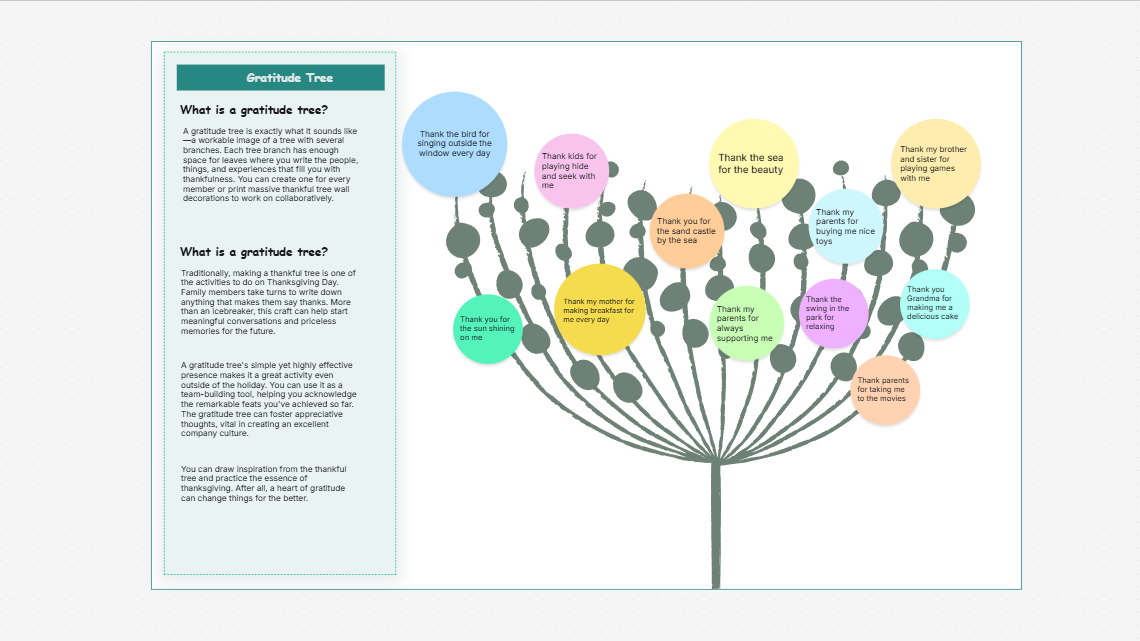
In today’s fast-paced world, we’re constantly bombarded with complex information, and finding ways to make sense of it all can be challenging. Whether you're brainstorming, planning a project, or trying to understand a difficult concept, visual tools like tree diagrams can make all the difference. A tree diagram maker is an excellent way to break down and visualize complex ideas. But with so many tools available, how do you know which one to choose?
In this article, we’ll explore some of the best tree diagram makers, discuss their features, and provide a step-by-step guide on how to create your own tree diagram. Let’s dive in!
What is a Tree Diagram and Why is it Important?
A tree diagram is a visual representation that helps organize information hierarchically. Think of it as a family tree that branches out, representing the relationships between concepts, tasks, or ideas. These diagrams are helpful because they:
-
Clarify complex relationships.
-
Break down information into manageable chunks.
-
Improve memory retention and understanding.
-
Make presentations more engaging.
Tree diagrams are used in various fields like project management, software development, education, and decision-making processes.
How to Choose the Best Tree Diagram Maker
When searching for the right tree diagram maker, there are a few key factors to consider. Choosing the best tool for you depends on your needs, level of expertise, and the complexity of the diagrams you want to create.
Key Features to Look for in a Tree Diagram Maker
-
User Interface and Ease of Use
You want a tool that’s intuitive and user-friendly, especially if you’re a beginner. A cluttered or overly complex interface can make the diagramming process frustrating. -
Customization Options
The ability to adjust colors, fonts, shapes, and lines is crucial. A tree diagram maker should allow you to customize the design to your needs. -
Collaboration Features
If you're working in a team, collaboration features are essential. Look for tools that allow multiple users to edit and contribute to the diagram simultaneously. -
Integration with Other Tools
Some tree diagram makers integrate with other software like Google Drive, Microsoft Office, or cloud storage, which can save time and make sharing easier. -
Exporting Options
Ensure that the tool allows you to export your diagram in different formats like PNG, PDF, or SVG for easy sharing and printing.
Is a Free Tree Diagram Maker Good Enough?
There are many tree diagram makers free options available, and while they offer basic functionalities, they may not have all the advanced features found in premium tools. Free tools can be great for personal or simple use, but for professional projects, you might need more advanced options.
Top Tree Diagram Makers You Should Try
Now let’s explore some of the best tools you can use to create beautiful and effective tree diagrams.
1. Cloudairy Tree Diagram Maker
Cloudairy’s tree diagram maker free is an easy-to-use online tool that lets you create clear, professional-looking diagrams. The platform is known for its simple drag-and-drop interface, which makes creating diagrams a breeze. Plus, Cloudairy offers a free version, which is ideal for anyone looking for a budget-friendly option.
Advantages of Using Cloudairy for Tree Diagrams:
-
Easy-to-use interface
-
Free plan with most features available
-
Cloud storage for easy access across devices
-
Collaboration features for teams
2. Lucidchart
Lucidchart is one of the most popular diagramming tools, offering a versatile tree diagram generator. It supports complex diagrams and integrates with popular apps like Google Docs, Microsoft Teams, and Slack. Lucidchart’s collaborative features make it perfect for teams working on large projects.
3. Canva Tree Diagram Generator
Canva is known for its design tools, and its tree diagram maker is no exception. It’s a great choice for beginners due to its simplicity and access to pre-designed templates. Whether you need a family tree, a decision tree, or an organizational chart, Canva offers plenty of options to get started.
How to Use Canva for Tree Diagrams:
-
Choose from a variety of templates.
-
Customize your design with Canva’s drag-and-drop editor.
-
Add nodes, branches, and text for a professional finish.
4. MindMeister
MindMeister is another fantastic tool for creating tree diagrams, particularly for brainstorming and mind mapping. Its sleek interface and easy-to-use features make it a great choice for educational or project-planning purposes.
5. Creately
Creately provides a visual collaboration platform, which is excellent for creating tree diagrams. It’s perfect for both individual use and teams. Creately also integrates with Google Drive and offers a host of customizable features, including templates and real-time collaboration.
6. Draw.io
Draw.io is an open-source tree diagram maker that provides robust features for creating custom diagrams. Whether you’re designing a simple tree or something more intricate, Draw.io offers flexibility and a user-friendly interface.
Step-by-Step Guide to Creating a Tree Diagram
Let’s walk through the process of creating a tree diagram, from start to finish.
Step 1: Choose Your Tree Diagram Tool
First, pick a tree diagram maker. Depending on your needs, you can choose from free tools like Cloudairy or premium ones like Lucidchart or MindMeister.
Step 2: Start with a Template
Many tools offer pre-designed templates. These templates can save you time and give you a solid starting point for your diagram.
Step 3: Add Your Information
Next, start adding nodes and branches. Each node represents a concept or idea, and the branches represent relationships or subcategories. Keep your diagram organized and logical.
Step 4: Customize Your Tree Diagram
Adjust the colors, fonts, and shapes to fit your needs. Use consistent styling for clarity and make sure the text is legible.
Step 5: Save and Share Your Tree Diagram
Once you’re satisfied with your diagram, save it in your preferred format and share it with colleagues or friends. Many tools also allow you to export your diagram directly to cloud storage or send it via email.
Tips for Making Your Tree Diagrams More Effective
-
Keep It Simple: Don’t overcomplicate your diagram. The simpler it is, the easier it will be to understand.
-
Use Consistent Styling: Stick to a color scheme and font style that’s easy on the eyes.
-
Use Annotations and Labels: Don’t forget to add annotations or labels to give context to your diagram.
Conclusion
A tree diagram generator is a powerful tool to visualize complex ideas and simplify understanding. By choosing the right tool and following best practices, you can create diagrams that are not only functional but also visually appealing. Whether you're working individually or as part of a team, these tools can help you organize ideas, plan projects, and communicate more effectively.
FAQs
1. What is a tree diagram?
A tree diagram is a visual tool used to organize information hierarchically. It’s commonly used in various fields like decision-making, project planning, and mind mapping.
2. Are there free tree diagram makers available?
Yes, there are several tree diagram maker free tools like Cloudairy, Draw.io, and Canva that allow you to create basic diagrams without spending money.
3. Can I collaborate with others on a tree diagram?
Yes, many tree diagram tools, such as Lucidchart and Creately, offer collaboration features, allowing you to work on diagrams with others in real time.
4. How do I export my tree diagram?
Most tree diagram makers allow you to export your diagram in various formats such as PNG, PDF, and SVG. Check your tool’s export options to choose the best format for your needs.
5. Can I create a decision tree using these tools?
Yes! Many tree diagram generators offer templates and customization options for creating decision trees, making them ideal for decision-making processes.

 Arabic
 Français
 Español
 Português
 Deutsch
 Türkçe
 Dutch
Dutch
 Italiano
 Russian
 Romaian