


Printer IT Help: A Complete Guide to Troubleshooting and Maintenance
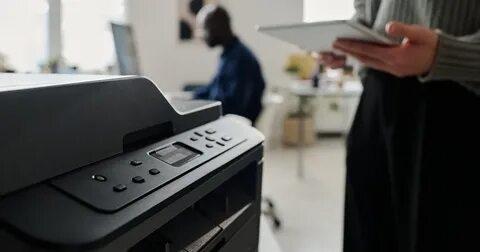
When technical issues interrupt your work, having quick and reliable Printer IT Help can make all the difference. Printers are essential tools for homes, offices, and professional environments, yet they are also known for creating unexpected challenges. From paper jams to faded prints and connectivity failures, printer problems can disrupt productivity and create unnecessary stress. This comprehensive guide will walk you through the most common issues, why they happen, and how to resolve them with simple, effective troubleshooting steps.
Understanding Common Printer Problems
Before you can fix a printer problem, it’s important to understand what causes it. Printers consist of mechanical parts, electronic circuits, software drivers, and network components. A failure in any of these can lead to errors.
Common causes include:
-
Improper paper loading
-
Faulty or outdated drivers
-
Weak Wi-Fi signals
-
Clogged nozzles or printheads
-
Low ink or toner levels
-
Dust buildup inside the device
-
Incorrect settings
The good news is that most printer issues are simple to diagnose and resolve without advanced technical knowledge.
1. Fixing Paper Jams
Paper jams happen more frequently than any other printer problem. They can occur due to overloaded trays, curled paper, or dust on the rollers.
How to Clear a Paper Jam
-
Turn off the printer and unplug it for safety.
-
Open the tray or back panel where the jam is located.
-
Gently pull out the jammed sheet in the direction of the feed path.
-
Look for small scraps of paper that may be stuck.
-
Restart the printer and try printing again.
Tips to Prevent Paper Jams
-
Always fan the paper before loading.
-
Avoid mixing different paper types in one tray.
-
Do not overfill the tray.
-
Keep the paper stored in a dry area to prevent moisture damage.
2. Solving Printer Connectivity Problems
Printers may fail to connect to your computer or network for several reasons, from signal interference to incorrect settings.
Fixing Wired Connection Issues
-
Ensure the USB or Ethernet cable is securely plugged in.
-
Replace damaged cables with new ones.
-
Restart the printer and computer.
Fixing Wireless Connection Issues
-
Connect the printer to the correct Wi-Fi network.
-
Place the printer closer to the router to strengthen signal quality.
-
Restart the router to refresh network settings.
Fixing Shared Printer Issues
-
Make sure the main computer is turned on.
-
Confirm that printer sharing settings are enabled in the system settings.
3. Improving Print Quality
Poor print quality can appear as faded text, blurry images, streaks, or uneven spacing.
Steps to Improve Print Quality
-
Check ink or toner levels and refill if needed.
-
Run the built-in printhead cleaning tool.
-
Remove the cartridge and gently wipe the nozzles if permitted.
-
Make sure you are using paper suitable for your printer type.
Reasons for Poor Print Quality
-
Low-quality paper
-
Dried ink inside the printhead
-
Incorrect print settings such as low-resolution mode
-
Toner distribution issues
Regular cleaning and maintenance can significantly extend the life of your printer and improve output quality.
4. Fixing “Printer Offline” Errors
One of the most confusing errors users face is the dreaded “Printer Offline” message, even when the printer is clearly powered on.
Common Causes
-
Incorrect default printer selection
-
Faulty network connections
-
Pending print queue errors
-
Outdated drivers
How to Fix the Issue
-
Set the device as the default printer in your system settings.
-
Clear the print queue to remove stuck jobs.
-
Restart the printer, computer, and router.
-
Make sure the printer is connected to the same network as your device.
5. Updating Drivers and Firmware
Without the correct software, your printer cannot communicate with your computer effectively. Outdated drivers often cause printing failures, error messages, or slow performance.
How to Update Drivers
-
Remove the outdated driver from your system.
-
Download and install the latest version from the printer’s official support area.
-
Restart your computer after installation.
-
Reconnect the printer and test with a sample page.
Updating Firmware
Firmware updates improve security, fix bugs, and enhance performance. Check your printer’s settings menu for available updates and install them as recommended.
6. Fixing Slow Printing
Slow printing can affect workflow efficiency, especially in office environments where multiple users rely on the same device.
How to Speed Up Your Printer
-
Change the print mode from “High Resolution” to “Draft” or “Standard.”
-
Avoid printing large, high-quality images unless necessary.
-
Use a wired connection instead of wireless for faster data transfer.
-
Update your printer’s firmware to improve processing speed.
Common Causes of Slow Printing
-
Heavy graphics in documents
-
Large file sizes
-
Outdated drivers or firmware
-
Weak network connection
7. Preventive Maintenance Tips
Proper maintenance ensures your printer performs well for years and reduces the need for Printer IT Help.
Maintenance Checklist
-
Clean the rollers and printhead regularly.
-
Keep the printer covered when not in use to prevent dust buildup.
-
Use high-quality ink, toner, and paper.
-
Turn the printer off properly instead of unplugging it abruptly.
-
Run diagnostics once a month.
Regular maintenance not only prevents problems but also enhances the overall quality and consistency of your prints.
FAQs About Printer IT Help
1. Why does my printer show a paper jam when there is no paper stuck?
This can happen when tiny scraps of paper remain hidden inside the rollers. Open the panels and look carefully for small pieces. Clean the rollers to reset the sensor.
2. How do I stop my printer from going offline?
Ensure your printer is set as the default device, check your Wi-Fi signal, clear the print queue, and restart all connected devices.
3. Why is my printer printing too slowly?
Your print settings may be set to high quality. Switching to draft or standard mode and using a wired connection can significantly speed up printing.
4. What causes streaks or lines in my printed documents?
Streaks usually happen due to clogged nozzles, low ink levels, or dirty rollers. Running a printhead cleaning cycle often solves the issue.
5. How often should I clean my printer?
Cleaning every two to three months is ideal for regular use. However, heavy users may need monthly cleaning to maintain print quality.
 Deutsch
 English
 Arabic
 Français
 Español
 Português
 Türkçe
 Dutch
Dutch
 Italiano
 Russian
 Romaian