


How to Save EML File as PDF Adobe Document – Complete Guide
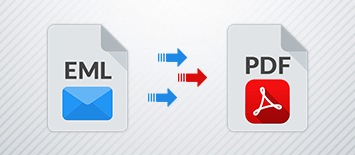
Are you looking for a reliable way to save an EML file as a PDF Adobe document? If yes, then you have landed on the right page. Many users want to convert or save EML email files into PDF format for easy sharing, long-term storage, or official documentation purposes. However, due to limited built-in options, users often feel confused about how to save EML files as PDF documents correctly.
This detailed blog explains everything you need to know about how to save EML files as PDF Adobe documents. Here, we discuss both manual and alternative professional solutions, which you can try at free of cost to clear all your doubts. So, read this complete guide carefully and resolve all your problems related to saving EML files into PDF format.
Understanding EML and PDF File Formats
Before moving ahead, it is important to understand what EML and PDF file formats are and why users prefer converting EML files to PDF.
What is an EML File?
An EML file is a single email message file format used by multiple email clients. Initially, it was introduced by Microsoft with Outlook Express, but today it is supported by many popular email programs, including:
- Windows Live Mail
- Windows Mail
- Mozilla Thunderbird
- eM Client
- DreamMail
- Turnpike
- Mac Mail
- Other EML file supported mail apps
An EML file stores complete email information such as sender details, recipient information, subject line, message body, metadata, and sometimes attachments.
What is a PDF File?
PDF (Portable Document Format) is a universal document format developed by Adobe. PDF files are widely used across the globe in hospitals, colleges, schools, offices, government organizations, and corporate sectors. One of the biggest advantages of PDF files is that they preserve formatting across all platforms and devices.
PDF files support -
- Text and images
- Hyperlinks
- Metadata
- Original formatting
- Attachments
- Password protection and encryption
Due to these advanced features, users prefer saving important emails in PDF format for legal, professional, and archival purposes.
Why Do Users Want to Save EML Files as PDF?
After understanding the benefits of PDF files, it becomes clear why users want to save EML files as PDF Adobe documents. Some common reasons include -
- Easy sharing and printing of emails
- Long-term email backup
- Legal and compliance requirements
- Secure storage with password protection
- Universal accessibility without email clients
Now, the main concern is how users can actually save an EML file as a PDF document.
How to Save an EML File as a PDF Adobe Manually
If you only have a few EML files and want a free method, you can save EML files as PDF using the print option available in supported email applications such as Windows Live Mail, Thunderbird, or Windows Mail.
However, when users need to save multiple EML files into PDF, the manual process becomes more complex. Below are the detailed steps using Mozilla Thunderbird.
Manual Method Using Thunderbird
Follow these steps carefully -
- Install Mozilla Thunderbird on your system.
- Configure your email account or launch Thunderbird normally.
- Download and install the ImportExport Tools extension in Thunderbird.
- Create a new folder inside Thunderbird.
- Collect all EML files in one location on your computer.
- Select the EML files and drag & drop them into the newly created Thunderbird folder.
- Verify that all EML files are successfully imported.
- Select the emails you want to save as PDF.
- Right-click on the selected emails.
- Choose ImportExport Tools → Save Selected Messages.
- Select the Save as PDF option.
After completing these steps, Thunderbird will save your selected EML files as PDF documents.
Limitations of the Manual Method
Although the manual method is free, it has several drawbacks that users should consider -
- Cannot save email attachments into PDF
- Time-consuming process
- Requires installation and configuration of Thunderbird
- Risk of data loss if any step is missed
- Not suitable for bulk EML to PDF conversion
- Sometimes does not maintain exact formatting
This method is useful only if you have a few EML files and no urgency. For large EML backups, it is not a reliable solution.
How to Save EML Files as PDF Using an Alternative Solution
If you have a large number of EML files, need urgent conversion, or want accurate results without technical complications, then using a professional solution is the best option.
BitVare Software
BitVare’s EML to PDF for Mac & Windows is specially designed for safe, quick, and advanced migration of EML files into PDF Adobe documents. The tool is thoroughly tested to ensure data integrity and accuracy during conversion.
Key Features
- Converts unlimited EML files to PDF in one process
- Supports selective EML email migration
- Maintains original email formatting
- Saves EML files with attachments into PDF
- Multiple preview options to read EML files
- No dependency on email clients
- Saves address book and phone numbers locally
- Easy-to-use interface suitable for all users
The tool allows users to preview EML files without any supported email application. You can read your EML emails for free before converting them.
Free Trial and Benefits
The BitVare EML to PDF Converter offers a free demo version that allows users to export up to 25 EML emails into PDF format at no cost. This helps users understand the working process and verify whether the software meets their requirements.
Using this tool, you can easily learn -
- How to save an EML file as a PDF format
- How to save multiple EML files into PDF
- How to save EML emails with attachments
- How to Add EML files to PDF with all details
Final Conclusion
Saving EML files as PDF Adobe documents is a common requirement for users who want secure, portable, and universally accessible email records. While the manual method using Thunderbird is suitable for a small number of EML files, it has several limitations and risks.
For users dealing with large EML backups, attachments, or urgent conversion needs, a professional EML Converter tool provides a reliable, accurate, and time-saving solution.
You can try both manual and professional methods at free of cost, compare the results, and choose the one that best fits your needs. This blog should now clear all your doubts regarding how to save EML messages into PDF Adobe documents efficiently.

 Arabic
 Français
 Español
 Português
 Deutsch
 Türkçe
 Dutch
Dutch
 Italiano
 Russian
 Romaian