


Salesforce ERP Integration: How to Connect SAP, NetSuite & Microsoft Dynamics 365
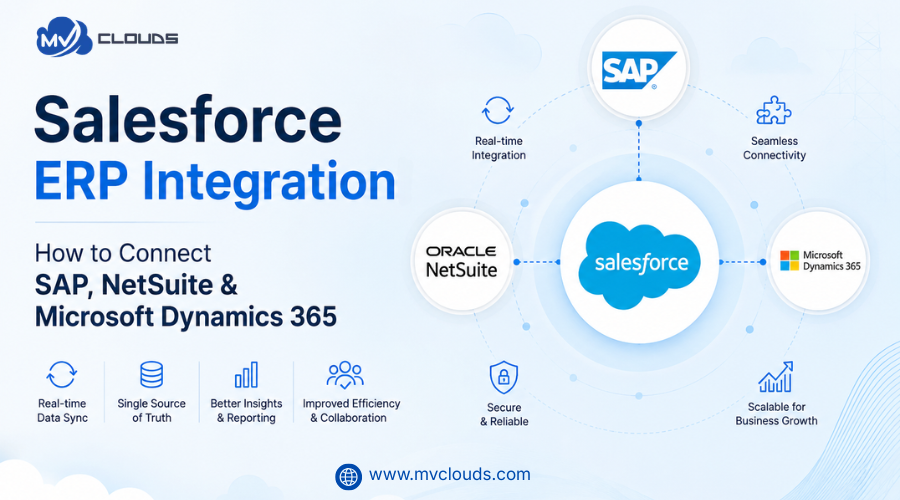
Modern businesses run on data, but that data rarely lives in one place. Your sales team works inside Salesforce. Your finance team operates in QuickBooks or NetSuite. Your operations team depends on SAP or Microsoft Dynamics 365. When these platforms don't talk to each other, you end up with data silos, manual data entry, costly errors, and delayed decisions.
That is exactly why Salesforce ERP integration has become one of the most critical technology investments for mid-to-large businesses today.
In this guide, we will walk you through what Salesforce ERP integration is, why it matters, and most importantly, how to do it. How to connect the three most popular ERP systems, SAP, NetSuite, and Microsoft Dynamics 365, with Salesforce, step by step.
What Is Salesforce ERP Integration?
Salesforce ERP integration connects Salesforce CRM with your ERP system, enabling real-time data flow between the two platforms.
Instead of manually exporting and importing records between systems, integration ensures that:
-
A new customer created in Salesforce automatically appears in your ERP.
-
An order placed in Salesforce instantly triggers inventory updates in your ERP.
-
Financial data from your ERP is visible to your sales team directly within Salesforce.
The result? One unified source of truth for your entire business.
Why Integrate Salesforce with an ERP System?
Before diving into the how-to, it is worth understanding the key business benefits that drive companies to pursue Salesforce ERP integration:
-
Eliminates Data Silos: Sales, finance, and operations teams all work from the same real-time data, removing duplication and inconsistency.
-
Accelerates Order-to-Cash Cycles: When Salesforce deals are automatically synced with ERP order management, billing and fulfilment happen faster.
-
Improves Sales Forecasting: Using the ERP inside Salesforce, sales reps can see live inventory levels and pricing.
-
Reduces Manual Work: Automated data synchronization frees up employees from repetitive data entry, reducing human errors.
-
Enables 360-Degree Customer View: Account managers can view a customer's full order history from start to end, payment status, and support tickets.
-
Enhances Compliance and Reporting: Having consistent data across systems simplifies audits, financial reporting, and regulatory compliance.
The Three Most Common Approaches to Salesforce ERP Integration
There are several methods to connect Salesforce with an ERP system. Choosing the right one depends on your business size, budget, and technical complexity.
1. Point-to-Point Integration
Your ERP system is connected directly to Salesforce through APIs. Small setups with limited data flows are good for this, but as complexity increases, it becomes difficult to manage.
2. Middleware / Integration Platform (iPaaS)
Tools like MuleSoft, Jitterbit or Boomi are a bridge between your Salesforce and your ERP, the most scalable and recommended approach for integration at the enterprise level.
3. Native Connectors / Prebuilt Packages
Some ERP vendors offer out-of-the-box connectors for Salesforce. These are easy to implement but might not be flexible enough for custom business processes.
Expert Tip: For complex ERP environments, partnering with expert Salesforce integration services providers ensures the integration is built right the first time.
How to Connect SAP with Salesforce
SAP is the world's most widely used ERP system for large businesses. Connect SAP with Salesforce and share data in real time between your core business and your CRM.
Follow the step-by-step process to integration.
Step 1: Define the Integration Scope
-
Identify which data objects need to sync: Accounts, Contacts, Orders, Products and Invoices.
-
Determine the direction of data flow (one-way or bi-directional).
Step 2: Choose Your Integration Method
-
The MuleSoft Anypoint Platform provides prebuilt SAP connectors for SAP-Salesforce integration.
-
Alternatively, you can use SAP Cloud Platform Integration (SAP Cloud Platform Integration), which integrates Salesforce.
Step 3: Map Data Fields
-
Field mapping between SAP business partners and Salesforce accounts.
-
Create a mapping between SAP sales orders and Salesforce opportunities or orders.
-
Provide support for differences in data types (for example, SAP date formats versus Salesforce formats).
Step 4: Set up Authentication
-
Set up OAuth 2.0 for Salesforce API access.
-
The SAP side needs to be configured for RFC (Remote Function Calls) or BAPI connections.
Step 5: Build and Test Data Flows
-
Create integration flows for each data entity.
-
Run sandbox tests with sample records.
-
Validate data accuracy and error handling.
Step 6: Launch and monitor.
-
Go live in a phased rollout.
-
Set up real-time monitoring dashboards and error alert notifications.
Common SAP-Salesforce Integration Use Cases:
-
Syncing customer master data between SAP and Salesforce
-
Pushing Salesforce opportunities to SAP as sales orders
-
Pulling SAP invoice status into Salesforce for account managers
Best for: Manufacturing, enterprise retail, and global operations.
How to Connect NetSuite with Salesforce
NetSuite is a popular cloud ERP used by fast-growing mid-market businesses. Its SuiteCloud platform makes it highly connectable with external systems like Salesforce.
Follow the step-by-step process to integration.
Step 1: Identify Key Integration Points
-
Common data syncs include: Customers, Products/Items, Sales Orders, Invoices, and Inventory.
Step 2: Select Your Integration Tool
-
Celigo and Jitterbit offer purpose-built NetSuite-Salesforce connectors.
-
For more control, use MuleSoft or build a custom integration using NetSuite's SuiteTalk REST/SOAP APIs and Salesforce REST APIs.
Step 3: Set Up NetSuite API Access
-
Enable SuiteTalk Web Services in NetSuite.
-
Generate Token-Based Authentication (TBA) credentials.
Step 4: Map Data Between Systems
-
Salesforce Account to NetSuite Customer
-
Salesforce Product to NetSuite Item
-
Salesforce Opportunity (Closed Won) to NetSuite Sales Order
Step 5: Handle Business Logic
-
Define what triggers a sync: Is it a status change? A checkbox? A scheduled batch?
-
Set rules for duplicate prevention using unique identifiers (e.g., Customer ID).
Step 6: Test, Validate, and Launch
-
Test bidirectional sync in both sandbox environments.
-
Validate financial totals, tax fields, and currency conversions.
-
Train end users on the new workflow.
Common NetSuite-Salesforce Integration Use Cases:
-
Automatically creating NetSuite invoices when a Salesforce deal is closed
-
Displaying live inventory and pricing from NetSuite on Salesforce Product pages
-
Syncing payment and invoice status back to Salesforce for collections follow-up
Best for: SaaS companies, Professional services and Subscription businesses
How to Connect Microsoft Dynamics 365 with Salesforce
All types of businesses use Microsoft Dynamics 365, a flexible ERP and CRM platform. Many companies use Dynamics 365 Finance & Operations alongside Salesforce as their primary CRM system, although there is some overlap.
Follow Step-by-Step Process to integration.
Step 1: Define What Needs to Sync
-
Typical objects: Accounts, contacts, leads, products, orders, and invoices.
Step 2: Choose Your Integration Approach
-
Microsoft Power Automate offers native Salesforce connectors and is ideal for lightweight integrations.
-
For enterprise-scale use, use MuleSoft, Azure Logic Apps, or Jitterbit.
-
Dynamics 365 also exposes data via OData APIs, which Salesforce can consume through custom connectors.
Step 3: Authenticate Both Systems
-
Set up a connected app in Salesforce with OAuth credentials.
-
Register an app in Azure Active Directory for Dynamics 365 API access.
Step 4: Design Integration Flows
-
Firstly, define the action to be taken for interaction between the two applications. As an instance, on completion of an Opportunity as "Closed Won" in Salesforce, it automatically triggers the creation of a Sales Order in Dynamics 365.
-
Next, accurately map the fields of both systems. Determine that Dynamics 365 requires GUIDs as record IDs while Salesforce uses IDs, so mapping is crucial to prevent any confusion or errors.
Step 5: Manage Conflict Resolution
-
Decide which system is the "master" for each data type.
-
Build logic to handle conflicts when records are updated in both systems simultaneously.
Step 6: Monitor and Optimize Post-Launch
-
Use integration platform dashboards to monitor sync frequency, error rates, and volume.
-
Schedule regular performance reviews with your integration partner.
Common Dynamics 365-Salesforce Integration Use Cases:
-
Adding closed Salesforce deals as confirmed orders to Dynamics 365
-
Syncing Dynamics 365 financial data with Salesforce (credit limits and payment terms)
-
Product catalogs across platforms should be unified
Best for: Enterprises already using the Microsoft ecosystem, distribution companies and operations-heavy businesses.
Best Practices for a Successful Salesforce ERP Integration
Regardless of which ERP you are integrating with, following these best practices will help ensure a smooth and lasting implementation:
-
Define a clear scope by identifying which objects, fields, and workflows need to sync between Salesforce and your ERP system.
-
Clean and validate your data before integration to avoid duplicate or inaccurate records.
-
Use scalable integration platforms like MuleSoft or Jitterbit instead of fragile point-to-point connections.
-
Build proper error handling with logging, alerts, and retry mechanisms to manage sync issues effectively.
-
Test all workflows in sandbox environments before deploying to production.
-
Involve both business users and IT teams to align technical setup with real business processes.
-
Work with experienced Salesforce integration specialists to reduce implementation risks and ensure long-term success.
-
Monitor and maintain the integration regularly as business needs and systems evolve.
Final Thoughts
Connecting Salesforce with your ERP system. Whether it is SAP, NetSuite, or Microsoft Dynamics 365 is one of the highest-impact decisions a growing business can make. When your CRM and ERP work in sync, your teams stop fighting data and start driving results.
From syncing customer data to automating order flows to giving your sales team real-time visibility into inventory and invoices, a solid Salesforce ERP integration pays dividends in every department.
If your business is ready to break down data silos and unlock the full power of connected systems, it starts with choosing the right integration approach and the right implementation partner.
At MV Clouds, our certified Salesforce specialists bring hands-on experience with ERP integrations across SAP, NetSuite, Microsoft Dynamics 365, and many more platforms. Explore our Salesforce Integration Services or learn how our Salesforce Implementation Services can help your business get connected the right way.

 Arabic
 Français
 Español
 Português
 Deutsch
 Türkçe
 Dutch
Dutch
 Italiano
 Russian
 Romaian