


How to Use Alt Symbols: The Ultimate Keyboard Shortcut Guide
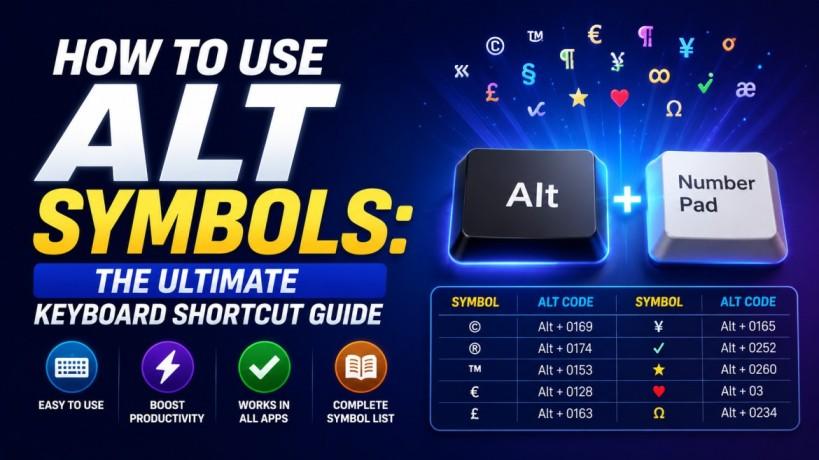
Have you ever needed to type a trademark symbol (™), a euro sign (€), or a simple em dash (—) but found yourself staring blankly at your keyboard? You are not alone. Standard keyboards only show a fraction of the characters available to you. To unlock the hidden universe of typography, you need to learn how to work with alt symbols.
These unique characters allow you to enhance your digital documents, social media posts, and professional emails without constantly copying and pasting from Google search results. In this guide, we will break down exactly how these shortcuts work and how you can start using them instantly.
What Are Alt Symbols?
At their core, alt symbols often referred to as Windows alt codes are system-level shortcuts used to input characters that do not have a dedicated physical key on your keyboard.
When you hold down the Alt key and type a specific sequence of numbers, your operating system translates that input into a unique character. This system relies on ASCII and Unicode encoding standards, meaning these keyboard shortcuts work across almost all text editors, web browsers, and word processors.
How to Type Alt Symbols on Windows
Using these codes is incredibly straightforward, but there is one major requirement: you generally need a keyboard with a dedicated numeric keypad (the block of numbers on the far right side).
Here is the exact step-by-step process to type symbols using your keyboard:
-
Turn on Num Lock: Ensure your Num Lock key is activated. If it is off, your number pad will act as navigation arrows instead of typing digits.
-
Hold the Alt Key: Press and hold down the Alt key on the left side of your spacebar.
-
Enter the Code: While holding Alt, type the exact numeric sequence for the symbol you want using the numeric keypad.
-
Release the Alt Key: Let go of the Alt key, and your hidden character will instantly appear on the screen.
Important Note for Laptop Users: If your compact laptop lacks a separate number pad, look for small alternative numbers printed on your standard letter keys (like M, J, K, L, U, I, O). You can usually activate these by holding down the Fn (Function) key alongside the Alt key.
Quick Reference Alt Code List
To help you get started right away, here is a breakdown of the most common and highly useful special characters you can create using standard shortcuts.
1. Currency & Financial Symbols
Whether you are writing a financial report or listing a product price, these codes are essential:
-
Alt + 0128 = € (Euro)
-
Alt + 156 = £ (British Pound)
-
Alt + 157 = ¥ (Japanese Yen)
-
Alt + 155 = ¢ (Cent sign)
2. Legal & Trademark Icons
Protect your intellectual property and maintain professional standards with these quick inputs:
-
Alt + 0153 = ™ (Trademark)
-
Alt + 0169 = © (Copyright)
-
Alt + 0174 = ® (Registered Trademark)
-
Alt + 21 = § (Section symbol)
3. Math & Science Notations
Stop writing out wordy descriptions when you can use clean mathematical formatting:
-
Alt + 241 = ± (Plus or minus)
-
Alt + 246 = ÷ (Division sign)
-
Alt + 0176 = ° (Degree symbol, perfect for temperatures)
-
Alt + 227 = π (Pi symbol)
Alternative Ways to Find Special Characters
If you are using a compact layout without any numeric options, or if you simply cannot remember a specific number sequence, Windows offers a couple of built-in tools to help you out.
The Windows Emoji and Symbol Panel
In modern versions of Windows, you can press Windows Key + Period (.) or Windows Key + Semicolon (;) to open a quick-access overlay. Click on the symbol icon (Ω) at the top of the panel to browse through categories like punctuation, currency, geometric shapes, and math signs.
The Traditional Character Map
For a complete look at every glyph installed on your machine, type "Character Map" into your Windows search bar. This legacy tool allows you to browse, select, copy, and view the precise alt codes for thousands of unique fonts and figures.
Frequently Asked Questions
Why are my alt symbols not working on my laptop?
This usually happens because your laptop lacks a dedicated physical numeric keypad. If your system does not have one, you must look for the secondary number overlays on your keyboard and toggle them on using the Fn key, or use the Windows Emoji Panel shortcut (Win + .).
Can I use these codes on a Mac?
No, the numeric codes outlined above are specific to the Windows operating system. Mac users utilize the Option or Option + Shift keys combined with regular letter keys to type special characters. Alternatively, you can press Control + Command + Space to pull up the macOS Character Viewer.
Do alt codes work in all software applications?
Yes, because these codes hook directly into the system-level text input encoding of Windows, they work seamlessly in Microsoft Word, Google Docs, notepad tools, coding editors, and web browsers.
Conclusion
Mastering alt symbols is an incredibly easy way to stream-line your daily digital communication and formatting. Instead of breaking your concentration to hunt down a character on the internet, you can simply keep a short cheat sheet of your favorite numbers handy. Over time, typing these shortcuts will become pure muscle memory.
If you are looking for more ways to optimize your workplace efficiency or need professional assistance setting up robust tech systems for your business, feel free to learn more on our alt symbols blog page. For direct help with your digital infrastructure or workflow optimizations, please reach out to our team via our contact us page today.

 Arabic
 Français
 Español
 Português
 Deutsch
 Türkçe
 Dutch
Dutch
 Italiano
 Russian
 Romaian