


Forgot Password Word Document? Here’s What You Can Do
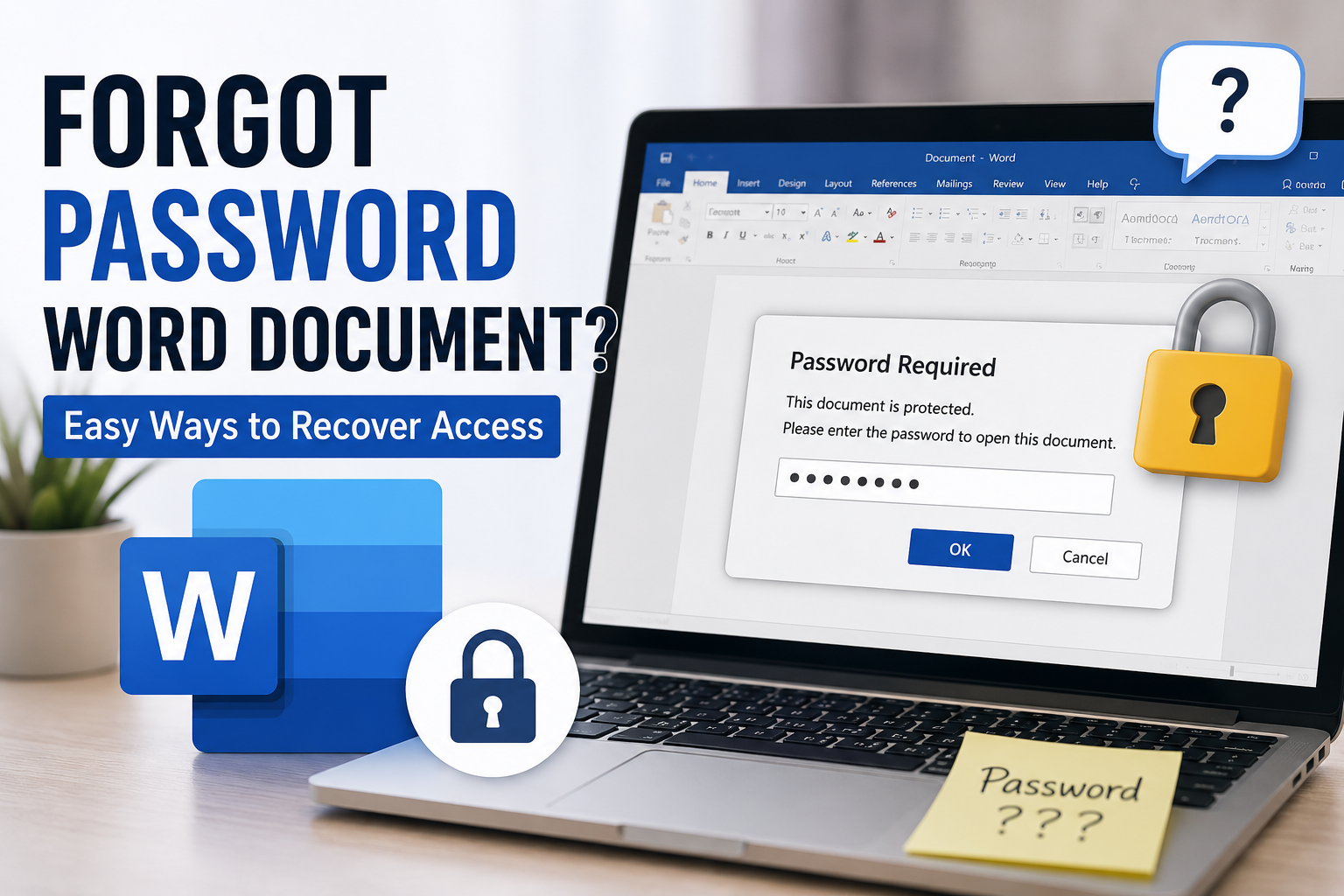
We’ve all been there. You create a Word document, add a password for extra security, and then months or even years later, you need that file again. You double-click it, enter what you think is the password, and suddenly realize you can't remember it.
If you have a forgot password Word document situation, don't panic. It happens more often than most people think. Whether the file contains work reports, academic projects, financial records, or personal notes, being locked out of your own document can be frustrating.
The good news is that there are several ways to try and regain access. In this guide, we'll go through practical solutions that can help you recover or unlock Word document files when the password has been forgotten. Additionally, if you wish to unlock Word document without password, then read this blog.
Why People Forget Word Document Passwords
Passwords are meant to protect sensitive information, but they can also become a problem when they're forgotten. Many users create passwords for important documents and then rarely open those files again. After a few months, it becomes difficult to remember the exact password. Sometimes people use multiple variations of passwords across different accounts and documents, making it even harder to recall the correct one. This is especially common with password protected Word files that are only accessed occasionally.
Forgot Password Word Document? Methods to Recover Access
If you have a forgotten password Word document and cannot access the information inside, there are several methods worth trying. Some are simple and rely on remembering the password, while others involve using specialized tools. The right method depends on how important the document is and whether you have any clues about the original password.
#1. Try Common Password Combinations
If you have forgotten the password for your Word document, start by trying passwords that you commonly use. Many people set passwords based on familiar information such as birthdays, names, phone numbers, favorite phrases, or simple number combinations. Before moving to advanced recovery methods, it is worth spending a few minutes testing the passwords you are most likely to have used.
Try doing this:
-
Open the locked Word document.
-
Enter passwords you commonly use.
-
Try important dates or names you may have chosen.
-
Check if you saved the password in a notes app or password manager.
-
Test a few different variations of the password.
-
If none work, proceed to another recovery method.
#2. Check Saved Passwords on Your Device
If you have a habit of saving passwords on your computer, browser, or password manager, there is a chance the password for your Word document is stored there. Many users save important passwords for convenience and later forget about them. Checking these saved credentials can be a quick way to regain access to a password-protected Word file.
Steps:
-
Open the password manager or browser you normally use.
-
Search for any saved passwords related to Microsoft Word or the document.
-
Check notes, digital notebooks, or secure apps where you store passwords.
-
Copy the password if you find a matching entry.
-
Open the Word document and enter the saved password.
-
If the password is not available, try another recovery method.
#3. Forgot Password Word Document? Use a Professional Recovery Tool
If you've tried everything you can remember and still can't open the file, a professional password recovery tool may be worth considering. These tools are specifically designed to help users regain access to password-protected Word documents without affecting the data stored inside them. For anyone dealing with a forgot password Word document, the SysTools MS Word Password Recovery Tool can be a useful option. It helps recover lost passwords using advanced recovery methods, making it easier to access important documents when you can no longer remember the original password.
Steps to follow:
-
Download and install a reliable recovery tool.
-
Launch the software on your computer.
-
Add the password-protected Word document.
-
Choose a recovery method, such as Mask Attack or Brute Force.
-
Start the password recovery process.
-
Wait for the tool to recover the password.
-
Use the recovered password to open the Word document.
Understand the Difference Between Recovery and Removal
Many people confuse password recovery with password removal.
Password recovery focuses on finding the original password used to secure the document.
Password removal, on the other hand, aims to remove protection from the file so that it becomes accessible again.
The method you choose will depend on your situation and the tools available to you.
Understanding this difference can help you select the right approach when attempting to unlock Word document files.
Things to Avoid During Password Recovery
When trying to recover access to a forgot password Word document, it is important to be careful. Taking the wrong approach can waste time, cause unnecessary frustration, or even put your document at risk. Avoiding a few common mistakes can make the recovery process smoother and improve your chances of success.
-
Avoid repeatedly guessing random passwords without a plan.
-
Do not download password recovery tools from untrusted websites.
-
Avoid making changes to the original document before creating a backup copy.
-
Do not share sensitive documents with unknown online services.
-
Avoid interrupting the recovery process once it has started.
-
Do not ignore saved passwords in browsers and password managers.
End Note
Forgetting the password to an important Word document can be frustrating, but it does not always mean the file is lost. Whether you try common password combinations, check saved credentials, or use a professional recovery solution, there are several ways to regain access to a forgot password Word document. The key is to start with the simplest methods and move to more advanced options if needed. By following the right approach and avoiding common mistakes, you can improve your chances of successfully recovering your document while keeping your data safe.

 English
 Arabic
 Español
 Português
 Deutsch
 Türkçe
 Dutch
Dutch
 Italiano
 Russian
 Romaian