


How to delete all Files on Mac Desktop?
Mac’s desktop is the place that has everything. By default, it’s the landing place of your screenshots, where downloads go for a while, and where your active files accumulate until they pile up. You didn’t even realize that before you knew it, your pristine desktop turns into a cluttered mess of icons. While having a messy desktop is not good for your productivity, it may also harm your Mac’s performance since macOS registers all icons on your desktop as separate windows taking up RAM.
If you need to start anew with your Mac or before reinstalling or selling the computer, cleaning your desktop is key. In this article, you’ll find out more about how to do that and how you can use MacMister Data Wipe for Mac – a must-have utility for people concerned about data privacy and complete deletion of all files from the computer.
Method 1: The Fast Manual Clean (with the help of the Trash)
For an ordinary clean-up job without any concerns about data retrieval, the fastest method is using native Mac commands.
- Make sure that the Finder menu appears in the upper left-hand corner by clicking on your desktop background.
- Type Command + A into your keyboard. This will mark all files, folders, shortcuts, images, etc., placed on your desktop.
- Either drag those marked objects directly to the Trash Can on your dock or use another command, i.e., Command + Delete.
- Finally, click on the icon representing the Trash in order to empty it and thus delete objects from your hard drive storage space.
Disadvantage with Manual Approach
There's an impression among many people that if they click the 'Empty Trash' command, their information is erased. Well, that's not true. Once you empty the Trash in macOS, what actually happens is that it will erase the index pointer of the information but the storage space occupied by the information remains marked for reuse. Since no new information is yet placed in that physical location on your hard disk, it's possible to restore the information using any off-the-shelf data recovery software.
Method 2: Try MacMister Data Wipe for Mac - A Safe Solution
In cases where your desktop has some company-sensitive information, your financial details, your private pictures, and any client information, simply using the trash method for data disposal may prove extremely unsafe.
If you want to ensure that your deleted files from your desktop are absolutely unrecoverable by anybody at all costs, then you require a premium file shredder program. MacMister Data Wipe for Mac is a premium data deletion software which is designed specially for Mac Operating Systems. This software overwrites your data with advanced and random data using complex algorithms, making it irretrievable.
Why Choose MacMister Data Wipe?
- It ensures 100% unrecoverable deletion of files, folders, and system traces.
- You don't have to wipe your entire Mac just to get rid of your desktop clutter; you can target specific files or folders precisely.
- The software utilizes globally recognized data erasure standards, including DoD 5220.22-M, NATO standards, and Peter Gutmann algorithms.
- It runs flawlessly on all modern macOS iterations, including macOS Sequoia, Sonoma, Ventura, and older versions, supporting both Intel chips and Apple Silicon (M1/M2/M3/M4 architectures).
Step-by-Step Process to Permanently Delete All Desktop Files with MacMister
Erasing your desktop through MacMister is easy with just a few clicks. Here is how you do it:
Step 1: Download and Install the Program
First, download and install MacMister Data Wipe for Mac on your computer. The program will automatically launch after installation.

Step 2: Upload files for Deletion
There are two different ways of loading desktop files into MacMister:
Use Add Files or Add Folders buttons, then open Finder window and add everything from your "Desktop" folder.

Step 3: Pick Your Shred Security Level
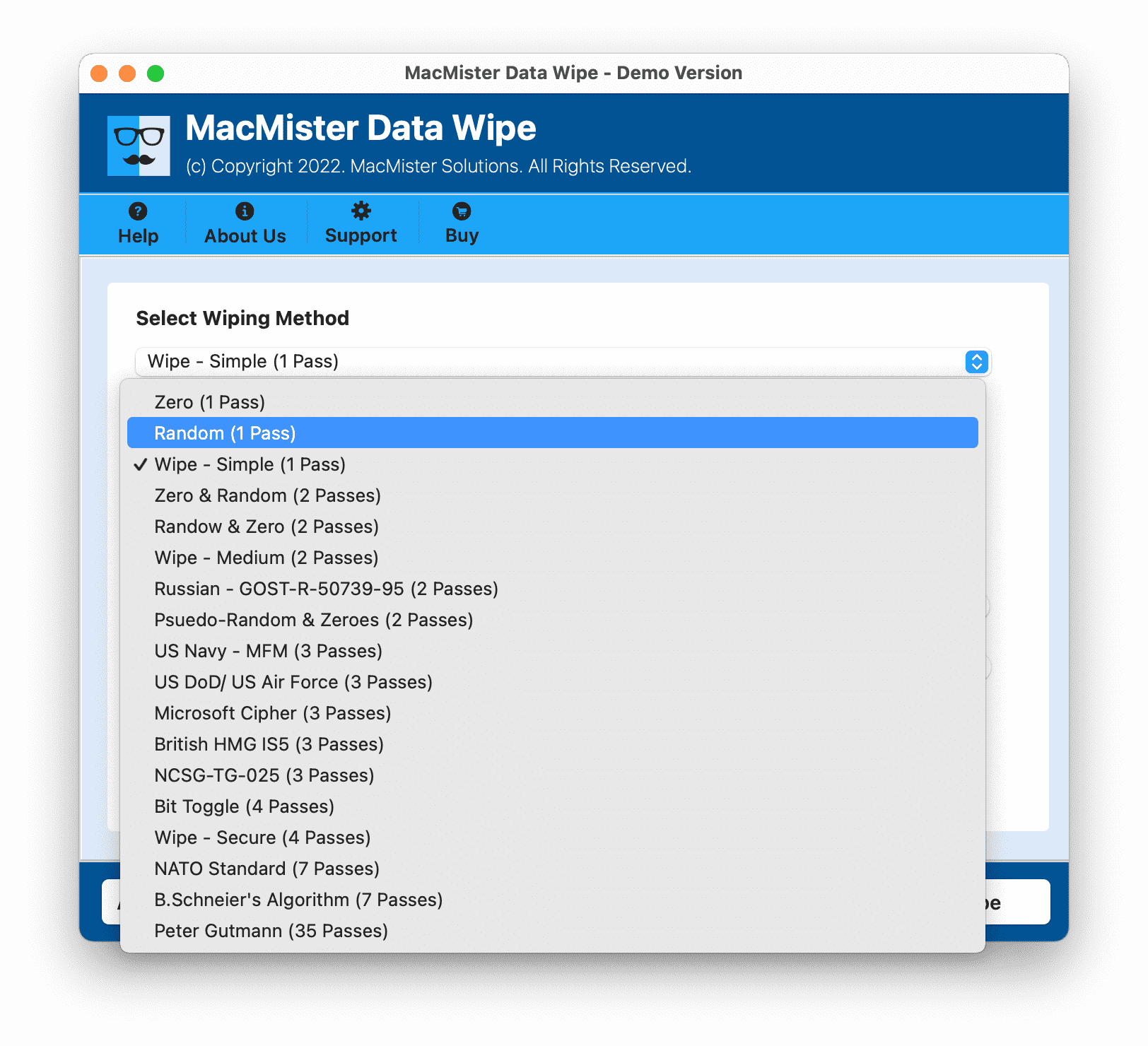
Pick which erase method you want using the drop-down menu. For routine shredding, one pass works lightning fast and is incredibly secure. If you need a high-security or military-grade wipe, you may pick a DoD Standard Multi-Pass Wipe such as DoD 3-Pass and 7-Pass.

Step 5: Erase Your Desktop Forever
Click the Wipe button. You will get a warning message telling you that it is an irreversible action. Click Yes to go on. There will be a live erase progress bar showing how much more time is left. In a matter of seconds, your desktop will be wiped clean.

Conclusion
Keeping your Mac desktop clean is probably the simplest way to enhance your productivity level. If moving files to the Trash is enough for deleting unnecessary files from your computer, it will not protect you from the threat to your privacy if you deal with confidential information. The advantage of using MacMister Data Wipe for Mac is that you can rest assured about the security of your information. Try the free demo version right away!
 Deutsch
 English
 Arabic
 Français
 Español
 Português
 Türkçe
 Dutch
Dutch
 Italiano
 Russian
 Romaian