


Online Microphone Test: A Simple Guide to Checking Your Microphone
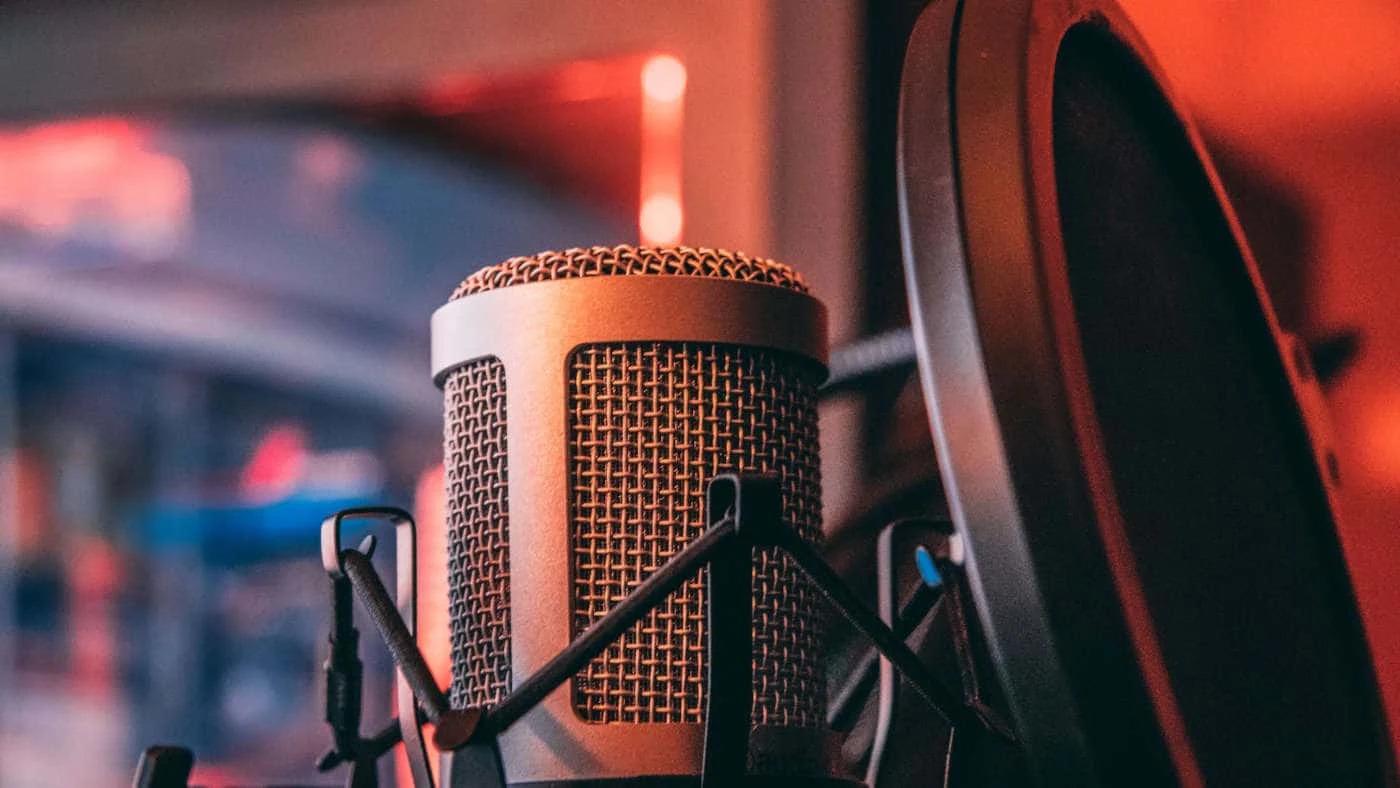
A microphone is now an important part of everyday digital communication. People use microphones for video meetings, online classes, gaming, streaming, podcasts, voice messages, and content creation. When a microphone does not work properly, it can make communication difficult. Fortunately, an online microphone test can help you check your microphone quickly without installing complicated software.
What Is an Online Microphone Test?
An online microphone test is a web-based tool that checks whether your microphone is working and receiving sound. These tools usually work directly through a web browser. After opening a testing page, you may need to allow the browser to access your microphone.
Once permission is given, simply speak into the microphone. A sound meter or visual indicator may respond to your voice. If the indicator moves, it usually means the microphone is detecting sound.
Why Is Microphone Testing Important?
A microphone can stop working for several reasons. It might be disconnected, muted, disabled in system settings, or connected but not selected as the main input device. Browser permissions can also prevent a website from accessing the microphone.
Testing your microphone before an important event can save time and frustration. For example, if you have an online job interview, meeting, or class, discovering a microphone problem at the last moment can be stressful.
How to Test a Microphone Online
The testing process is usually simple. First, connect your external microphone or headset to your computer. If you are using a laptop, you can use its built-in microphone.
Open a trusted microphone testing website in your browser. When the website asks for microphone permission, choose the option that allows access.
Checking Microphone Volume
Low microphone volume is one of the most common audio problems. You may be speaking clearly, but other people might still struggle to hear you.
If your voice is too quiet, check your computer's microphone input settings. Increase the input level gradually and test again. Moving the microphone closer to your mouth can also improve the sound.
Dealing With Background Noise
Background noise can affect microphone quality. Common sources include fans, air conditioners, keyboards, traffic, televisions, and conversations in nearby rooms.
If your microphone picks up too much noise, move to a quieter location. Keep unnecessary devices away from the microphone when possible.
Fixing a Microphone That Is Not Detected
Sometimes an online microphone test may show that no microphone is available. Start by checking the physical connection. If you are using a USB microphone, unplug it and connect it again.
For wireless headphones or microphones, make sure the device is charged and properly connected through Bluetooth.
You should also check your computer's sound settings. Make sure the correct microphone is selected as the input device. If several microphones are connected, your computer may accidentally choose another one.
Check Browser Microphone Permissions
Web browsers normally ask for permission before allowing a website to use your microphone. If you accidentally selected the option to block access, the microphone test may not work.
Look for the microphone or permission icon near your browser's address bar. From there, you can review the permission given to the website.
Testing a Microphone for Online Meetings
Online meetings are one of the most common reasons people test their microphones. Platforms used for business meetings and virtual classes may automatically select a microphone, but they do not always choose the one you want.
Before an important meeting, test your microphone and make sure your voice can be heard clearly. If possible, use the meeting application's own audio test as an additional check.
Microphone Testing for Gaming and Streaming
Clear audio is also important for gamers and streamers. During multiplayer games, teammates need to understand voice communication quickly. Streamers need clear speech so viewers can follow their commentary.
Using an online microphone test before gaming or streaming can help identify problems such as static, echo, low volume, and background noise.
Tips for Better Microphone Performance
Good microphone placement can make a major difference. Keep the microphone at a comfortable distance and speak toward the correct side of the microphone if it has a specific pickup direction.
Avoid hitting or moving the microphone while speaking. Keep cables away from areas where they can be accidentally touched.
Conclusion
An online microphone test provides a fast and simple way to check whether your microphone is working correctly. It can help you identify problems with sound detection, volume, browser permissions, background noise, and microphone selection. Whether you are preparing for a video meeting, online class, gaming session, podcast, or live stream, testing your microphone beforehand can make your experience smoother. With proper settings, good placement, and a quiet environment, you can achieve clearer and more reliable audio without complicated equipment.

 Arabic
 Français
 Español
 Português
 Deutsch
 Türkçe
 Dutch
Dutch
 Italiano
 Russian
 Romaian