


HP OfficeJet Pro 7740: A Complete Setup and User Guide
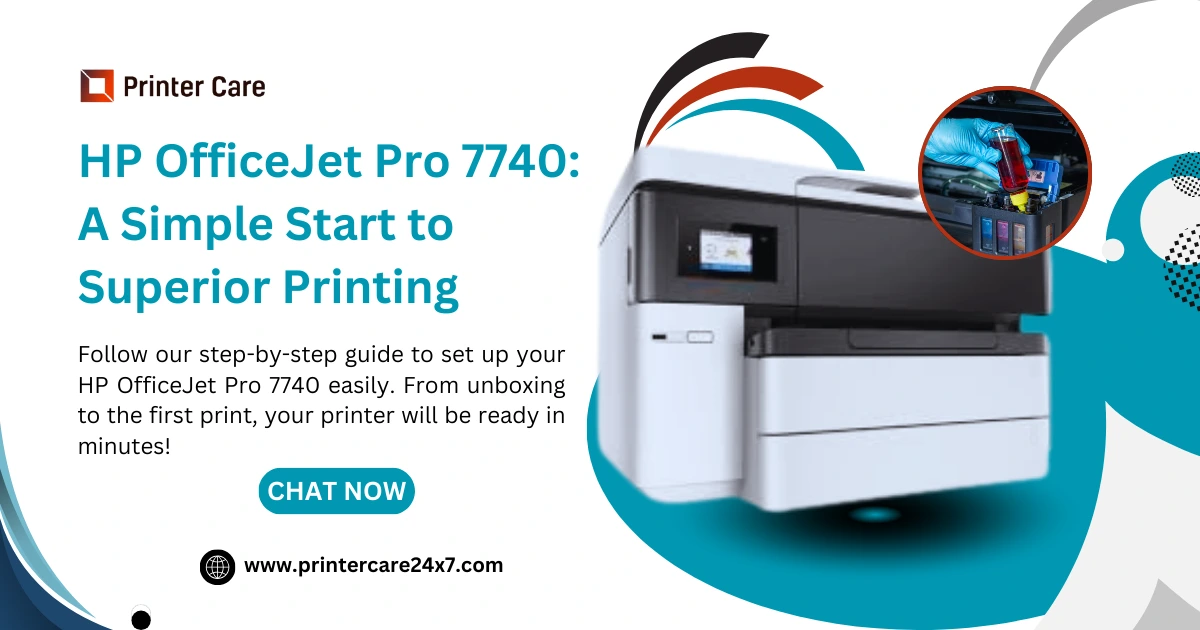
The HP OfficeJet Pro 7740 is a versatile wide-format all-in-one printer designed to handle large paper sizes, making it ideal for small businesses and home offices alike. It offers print, scan, copy, and fax functions, wireless connectivity, and advanced printing features. To ensure you get the most out of this powerful device, here’s a complete guide to setting it up and optimizing its use.
1. Unboxing and Setup Preparation
Before you start the setup process, ensure you have everything you need. Inside the box, you should find:
- The HP OfficeJet Pro 7740 printer
- Ink cartridges
- Power cord
- A USB cable (optional)
- User manual and setup instructions
Once everything is unpacked, place the printer on a flat, stable surface. Ensure it’s near a power outlet and has enough space for the wide paper trays.
2. Installing Ink Cartridges
Open the ink cartridge access door on the printer's front. You’ll need to install the four ink cartridges (black, cyan, magenta, and yellow) that come with your printer. Each slot is color-coded to match the cartridge, making installation simple. Push each cartridge into its respective slot until it clicks into place.
3. Loading Paper
The HP OfficeJet Pro 7740 has two paper trays, allowing you to load different paper sizes simultaneously. You can print on standard sizes like A4 and letter or go up to 11x17 inches for larger formats. Adjust the paper guides to fit your selected paper size and load the paper into the tray. Be sure the paper is aligned to prevent jams or misfeeds.
4. Connecting the Printer
You have several options for connecting your HP OfficeJet Pro 7740:
- Wireless Connection: This is the most convenient option for most users. On the printer’s touchscreen display, navigate to the "Network" settings, then select "Wireless Setup Wizard" to connect to your Wi-Fi network. Enter your network’s password when prompted.
- USB Connection: If you prefer a wired connection, use the provided USB cable to connect the printer directly to your computer.
- Ethernet Connection: For a more stable connection, you can use an Ethernet cable to connect the printer to your network.
Once connected, the printer will automatically detect the network and complete the setup.
5. Installing the Printer Drivers
To fully utilize your HP OfficeJet Pro 7740, it’s crucial to install the latest drivers. Visit the HP Support website and search for the HP OfficeJet Pro 7740 drivers. Download the appropriate software for your operating system (Windows or macOS) and follow the installation prompts. During the installation, you may be asked to choose between a wireless or USB connection, depending on your setup preference.
6. Using the HP Smart App
The HP Smart app is a helpful tool to manage your printer directly from your smartphone or tablet. Download the app from your device’s app store, and follow the instructions to add your printer. You can print, scan, copy, and even check ink levels from the app, making it a convenient way to manage your device remotely.
7. Optimizing Print Settings
Once your printer is set up, take the time to optimize your print settings for the best results. For high-quality prints, choose the correct paper type and print resolution through the print settings on your computer or mobile device. You can also enable automatic double-sided printing to save paper or set up draft mode for faster, more economical prints.
8. Troubleshooting Common Issues
Like any printer, the HP OfficeJet Pro 7740 may occasionally run into issues. Here are a few quick fixes for common problems:
- Paper Jams: If the paper jams, open the paper tray and remove any stuck paper. Check the paper path to ensure no pieces are left inside.
- Connectivity Issues: If the printer loses its wireless connection, restart both the printer and your Wi-Fi router. Use the Wireless Setup Wizard to reconnect if necessary.
- Print Quality Problems: If your prints are streaky or faded, run a printhead cleaning cycle through the printer’s settings menu.
9. Maintenance and Care
To keep your HP OfficeJet Pro 7740 in top condition, regularly clean the paper path and the printhead. Check for software and firmware updates via the HP Smart app or the HP website to ensure your printer is running the latest version.
Conclusion
The HP OfficeJet Pro 7740 is a robust, feature-packed printer perfect for those needing wide-format printing capabilities. By following this guide, you can set up your printer, optimize its settings, and keep it running smoothly for all your printing, scanning, and copying needs. Whether you’re working from home or managing a small business, this printer is designed to boost productivity with high-quality, efficient performance.

 Arabic
 Français
 Español
 Português
 Deutsch
 Türkçe
 Dutch
Dutch
 Italiano
 Russian
 Romaian