


How to Build an HTML Email from Scratch (Beginner's Guide)
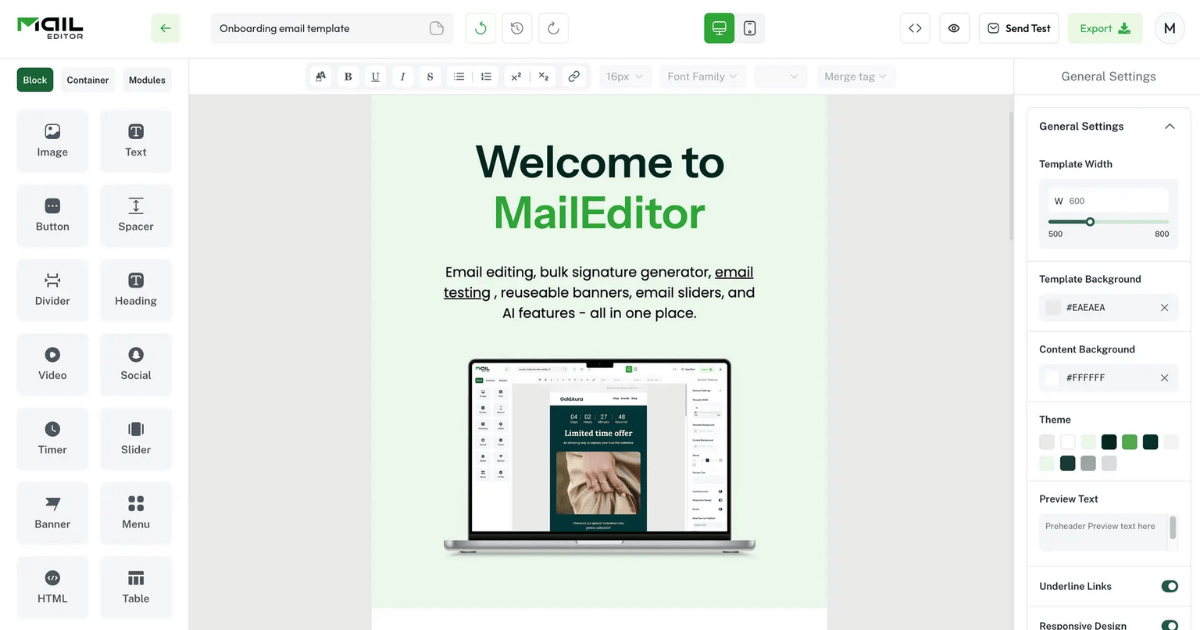
Email marketing is one of the most powerful tools available to businesses today. But sending a plain text email is no longer enough. If you want to stand out in crowded inboxes, you need well-designed, properly structured HTML emails. The good news is that building one from scratch is not as complicated as it sounds, especially when you have the right HTML email builder by your side. This guide walks you through the entire process, step by step.
What Is an HTML Email?
An HTML email is an email that uses HyperText Markup Language to display formatted content such as images, buttons, columns, colors, and custom fonts, just like a webpage. Unlike plain text emails, HTML emails let you control the visual layout of your message, making them ideal for newsletters, promotional campaigns, product announcements, and transactional emails. When done correctly, an HTML email looks professional, reinforces your brand identity, and drives higher engagement from your audience.
Why Building HTML Emails the Right Way Matters
Before jumping into the steps, it is worth understanding why structure matters. Email clients like Gmail, Outlook, and Apple Mail all render HTML differently. An email that looks perfect in one client may break completely in another. This is why HTML emails require a specific approach, one that accounts for email client compatibility, responsive design, and clean code. A reliable HTML email builder handles most of these issues automatically, so you can focus on design and content rather than debugging code across a dozen email clients.
Step 1: Define Your Email Goal and Structure
Every HTML email should start with a clear purpose. Ask yourself what action you want the reader to take, what the single most important message is, and who this email is going to. Once you have your answers, plan the structure. A standard HTML email layout includes a header with your logo, a hero section with a headline and image, a body section with your main content, a call-to-action button, and a footer with your contact details and unsubscribe link. Keep the layout simple. One or two columns work best for most email campaigns. Complex layouts often break on mobile devices.
Step 2: Choose Your Approach
You have two main options when building an HTML email. The first is writing raw HTML and CSS by hand. This gives you complete control but requires coding knowledge. You also need to remember that external stylesheets do not work in most email clients, so all CSS must be inlined. Tables are still widely used for layout because they render consistently across email clients.
The second option is using an HTML email builder with a drag and drop interface. This is the approach most marketers and small business owners prefer. A good email templates builder lets you visually arrange blocks such as images, text, buttons, and dividers without touching a single line of code. The tool handles the HTML output for you, producing clean, client-compatible code in the background. For beginners especially, using a builder is the smarter and faster choice.
Step 3: Set Up Your Email Layout
Whether you are coding manually or using a builder, your layout needs a few key elements to work properly across all email clients. Start with a fixed-width container. Most email designs use a width of 600px, which works well across desktop and mobile. Set the background color for both the body and the container separately, as this ensures the design looks right even when viewed in preview panes. Use table-based layouts if you are coding manually. Divs and flexbox do not render reliably in all email clients, particularly older versions of Outlook. If you are using an email templates builder, simply choose a layout and the tool handles all of this automatically.
Step 4: Add Your Content Blocks
Now it is time to fill in your email with actual content. Start with your header. This is where your brand logo goes. Keep it centered or left-aligned depending on your brand guidelines. Make sure your logo is hosted on a reliable server so it loads properly for all recipients.
Next, add your hero section. This is the first thing readers see after the header. Use a strong headline that communicates your value immediately. Pair it with a relevant image if appropriate, but always add alt text because many email clients block images by default. Your body content should be concise. Break it into short paragraphs. Avoid writing walls of text. Every section should serve a clear purpose, whether that is to inform, engage, or direct the reader toward your call to action. Your call-to-action button is arguably the most important element in the email. Make it visually distinct, keep the label short and action-oriented, and place it where the reader cannot miss it.
Step 5: Style Your Email
Styling an HTML email is different from styling a webpage. Use inline CSS, as most email clients ignore external stylesheets. Stick to web-safe fonts such as Arial, Georgia, and Verdana, since custom fonts do not load consistently across all email clients. Keep your color palette consistent with your brand. Use your brand colors for headings, buttons, and accents. A consistent visual identity builds trust with your subscribers. Make sure your design is responsive. More than half of all emails are now opened on mobile devices, so your layout should stack into a single column on smaller screens. MailEditor handles responsive design automatically, saving you a significant amount of time and effort.
Step 6: Export and Test Your HTML Email
Once your design is ready, export the clean HTML code. If you are using a builder, this is usually a one-click process. You get a file or a block of code that you can paste directly into your email service provider. Before sending to your list, always test your email. Send it to yourself and check it on desktop and mobile. Check how it looks in Gmail, Outlook, and Apple Mail at minimum. Pay attention to image loading, font rendering, button functionality, and link accuracy. MailEditor includes built-in testing tools that show you previews across different clients before you export, which makes this step much easier.
Step 7: Import Into Your Email Service Provider
Your HTML email is now ready to send. Most email service providers accept raw HTML that you can paste directly into their editor. Some also allow you to upload an HTML file. If you built your email using an HTML email builder, check whether it supports direct integration with your preferred platform. MailEditor connects with platforms like Mailchimp, ActiveCampaign, HubSpot, Klaviyo, and others, letting you push your finished email directly without any copy-pasting.
Common Mistakes to Avoid
Even experienced marketers make errors when building HTML emails. Avoid using background images for critical content, as many clients do not render them. Do not rely on images alone to convey your message. Always include a plain text version of your email alongside the HTML version. Keep your file size under 100KB to avoid clipping in Gmail. Never skip the unsubscribe link, as it is both a legal requirement and a trust signal for your subscribers.
Final Thoughts
Building an HTML email from scratch might seem overwhelming at first, but once you understand the structure and the rules of email rendering, the process becomes straightforward. The key is starting with a clear goal, keeping your layout simple, and using the right tools. A good HTML email builder removes the hardest parts of the process, including the coding, the compatibility issues, and the responsive design, and lets you focus entirely on creating emails that connect with your audience.
Whether you are a marketer, a small business owner, or a developer looking to save time, using a proper email templates builder like MailEditor can make every campaign faster, cleaner, and more effective. You can also explore free HTML email templates to get a head start on your design without building everything from zero. Visit maileditor.net to get started for free today.

 English
 Arabic
 Français
 Español
 Português
 Deutsch
 Türkçe
 Dutch
Dutch
 Italiano
 Russian