


Creating and Utilizing Classes in QuickBooks
Creating and Utilizing Classes in QuickBooks
Managing finances effectively is crucial for small businesses, especially when you want to track transactions by different categories like departments, locations, or projects. That’s where Classes in QuickBooks come in! This powerful feature lets you organize your transactions for more detailed financial insights and accurate reporting.
In this guide, we’ll explain how to create and use classes in QuickBooks to streamline your financial tracking.
What Are Classes in QuickBooks?
Classes in QuickBooks are a way to categorize transactions beyond the standard Chart of Accounts. They allow you to track income and expenses for specific segments of your business, such as:
- Departments (e.g., Sales, Marketing, Operations)
- Locations (e.g., different stores or offices)
- Projects or Events (e.g., special campaigns or contracts)
Using classes helps you see which areas of your business are most profitable and where you may need to cut costs.
How to Enable and Create Classes in QuickBooks
1. Enable Class Tracking
Before you can use classes, you’ll need to enable the feature:
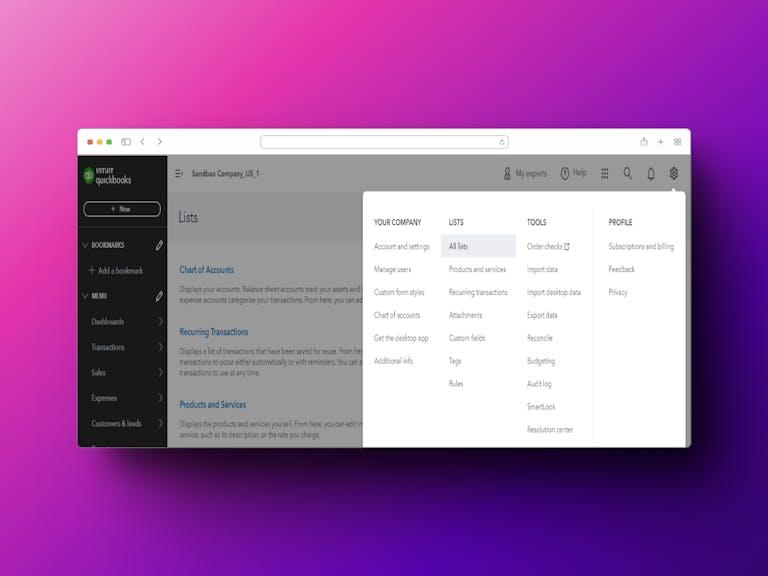
- Go to the Settings menu in QuickBooks.
- Select Account and Settings > Advanced.
- In the Categories section, turn on the Track Classes option.
- Save your changes.
2. Create a New Class
Once class tracking is enabled, you can start creating classes:
- Go to the Lists menu and select Classes.
- Click New to add a class.
- Enter the class name (e.g., “Marketing Campaign 2025”).
- Click Save to add the class to your list.
3. Assign Classes to Transactions
When recording a transaction (e.g., invoices, bills, or journal entries), you’ll see a dropdown menu to assign a class. Choose the appropriate class for the transaction to categorize it correctly.
How to Use Classes Effectively
1. Track Profitability by Segment
Run a Profit and Loss report by class to see which departments, projects, or locations are driving profits.
2. Monitor Expenses
Analyze class-based expenses to identify overspending and opportunities for cost-cutting.
3. Budget by Class
Set budgets for specific classes to control spending and measure performance against goals.
Benefits of Using Classes in QuickBooks
- Detailed Insights: Gain a clear picture of how each part of your business is performing.
- Improved Decision-Making: Use class-specific data to make informed financial decisions.
- Streamlined Reporting: Generate detailed reports to share with stakeholders or for tax preparation.
Learn More
Ready to enhance your financial management? Get a step-by-step guide on creating and utilizing classes in QuickBooks here: How to Create Classes in QuickBooks.
Final Thoughts
Class tracking is a simple yet powerful tool in QuickBooks that can revolutionize how you manage and analyze your business finances. If you need help organizing or managing data in QuickBooks, Transyncpro is here to assist you with bulk imports and data management solutions!
 Deutsch
 English
 Arabic
 Français
 Español
 Português
 Türkçe
 Dutch
Dutch
 Italiano
 Russian
 Romaian