


How to Implement an Inventory Management System Using Lansweeper
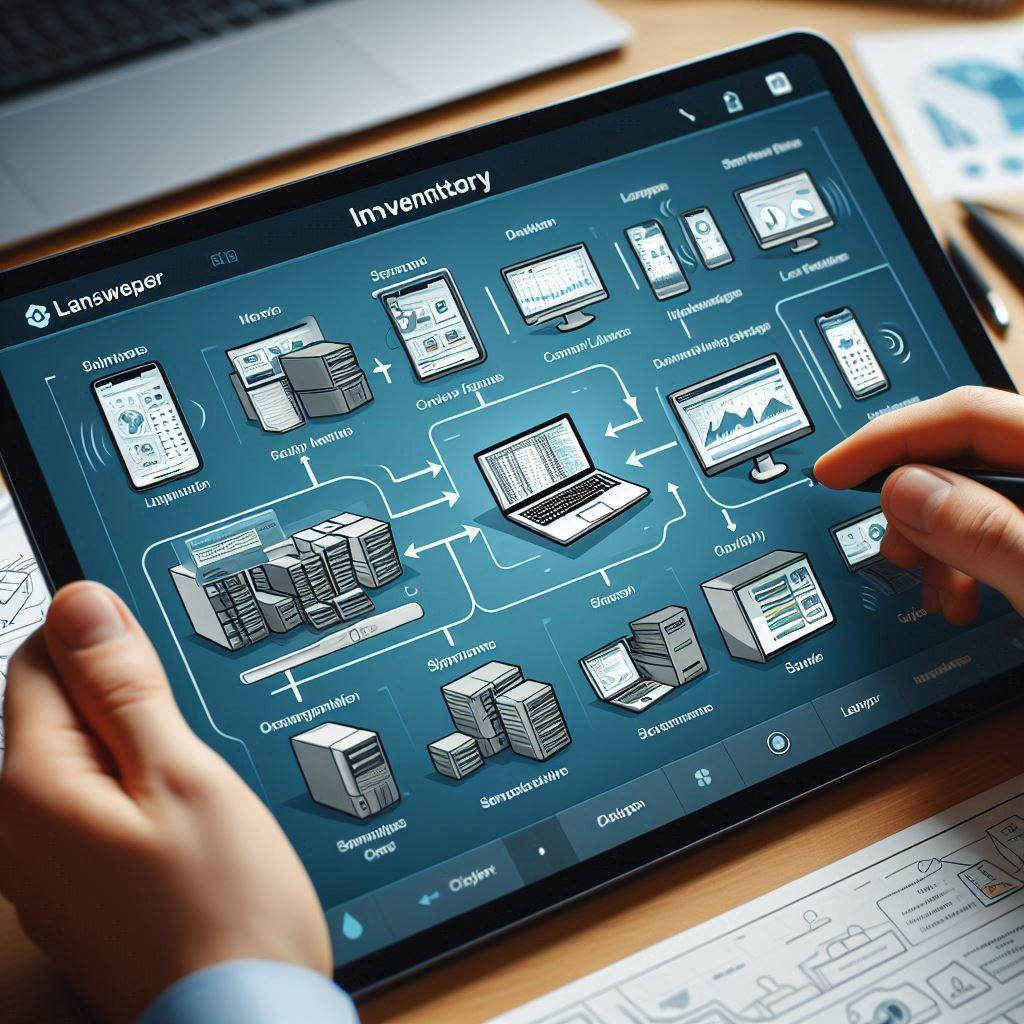
Lansweeper is a comprehensive IT asset management solution designed to help businesses and organizations keep track of their hardware, software, and networked devices. With its powerful scanning and reporting capabilities, Lansweeper can be leveraged to implement a highly effective inventory management system that provides real-time visibility into your assets. In this guide, we’ll walk you through the steps to implement an inventory management system using Lansweeper.
Step 1: Set Up Lansweeper
Before you can start using Lansweeper for inventory management, you need to install and configure the software:
-
Download Lansweeper:
Head to the official Lansweeper website and download the software. Choose the version that fits your organization’s needs (there are both free and paid versions). -
Install Lansweeper:
Run the installer and follow the on-screen instructions to install Lansweeper on your server or designated machine. Ensure that you meet the system requirements, including sufficient memory, disk space, and the proper version of Windows or Linux. -
Configure Lansweeper:
After installation, open Lansweeper’s web interface in your browser. Follow the setup wizard to configure your network settings, scan options, and user preferences.
Step 2: Perform Network Scanning
To track the devices and assets within your network, you’ll need to configure Lansweeper’s scanning capabilities. This step allows Lansweeper to discover and catalog devices connected to your network.
-
Set Up Scanning Credentials:
In Lansweeper, go to the Configuration section and select Scanning Credentials. Add the credentials (admin-level access) needed to scan different devices such as servers, computers, and printers. -
Configure Network Scanning:
Navigate to Scanning in the Configuration section. Here, you can configure Lansweeper to scan various subnets, IP ranges, or specific devices. Lansweeper uses multiple protocols such as SNMP, WMI, and SSH to gather information about the devices connected to your network. -
Scan Your Network:
Once scanning settings are in place, initiate a scan by selecting Scan Now. Lansweeper will now automatically discover devices and assets within the defined range. This includes computers, servers, network printers, and any other networked equipment.
Step 3: Organize and Categorize Assets
After scanning your network, Lansweeper will have a comprehensive list of all discovered assets. To make inventory management more efficient, it’s essential to organize these assets into categories and groups:
-
Asset Tagging:
Tagging assets with labels such as “Laptops,” “Printers,” “Servers,” or “Networking Devices” helps in organizing them. You can also tag assets based on departments or users. -
Asset Groups:
Create custom asset groups to categorize assets by specific criteria, like department, device type, or location. For instance, you can create groups like “HR Department,” “Warehouse Servers,” or “Office Workstations.” These groups will allow you to filter and access the assets more easily. -
Asset Details:
For each device discovered, Lansweeper pulls detailed information such as device type, operating system, software installed, hardware specifications, and more. You can customize the fields to ensure you’re tracking all necessary information relevant to your organization’s inventory.
Step 4: Set Up Alerts and Notifications
Lansweeper allows you to configure alerts for different types of events, which helps in keeping track of your inventory in real-time.
-
Create Alerts for Changes:
Configure alerts for changes in asset status. For example, you can receive notifications if a device goes offline, gets replaced, or is marked as disposed of. This will help you maintain accurate records of your assets. -
Set Up Software License Alerts:
Lansweeper can notify you when software licenses are approaching their expiration date or if an installed software exceeds the allowed license limit. This ensures that your software management is up-to-date and compliant. -
Threshold Alerts for Device Conditions:
You can also set up alerts for critical hardware conditions, such as low disk space, high CPU usage, or memory issues. This ensures that your inventory remains operational and identifies potential issues before they become serious.
Step 5: Generate Reports for Inventory Management
Lansweeper provides robust reporting tools to help you generate detailed reports of your inventory, making it easy to track, analyze, and make decisions.
-
Custom Reports:
You can create custom reports based on the asset data captured by Lansweeper. Reports can include hardware specifications, installed software, user details, warranty information, and much more. Use Lansweeper’s built-in Report Builder to create reports tailored to your needs. -
Exporting Data:
Lansweeper allows you to export asset data to various formats such as Excel, CSV, or PDF. This is useful for creating inventory audits, financial assessments, or providing documentation for IT management or compliance purposes. -
Scheduled Reports:
You can schedule reports to run automatically at regular intervals (daily, weekly, or monthly). Lansweeper will send these reports directly to designated recipients, saving you time and effort in manual report generation.
Step 6: Integrate with Other Tools (Optional)
Lansweeper offers integration capabilities with other systems such as asset management tools, IT service management (ITSM) platforms, and financial systems. By integrating Lansweeper with your existing tools, you can improve workflows, enhance collaboration, and streamline your overall inventory management process.
-
Integrate with ITSM Solutions:
Lansweeper can be integrated with popular ITSM tools like ServiceNow, FreshService, or Jira. This allows you to connect asset data with your IT service management system for better incident management and support ticketing. -
Integrate with Financial Management Systems:
Sync your inventory data with financial management systems to track the lifecycle cost of assets, including procurement, maintenance, and disposal.
Step 7: Maintain and Update Inventory
Maintaining your inventory is an ongoing process. You’ll need to ensure regular scans, updates, and adjustments to your asset management system.
-
Regular Network Scans:
Schedule regular scans to ensure that any newly added or removed devices are accurately reflected in your inventory. -
Track Asset Changes:
As devices are replaced or upgraded, ensure that the asset details are updated in Lansweeper. You can also use Lansweeper’s asset history feature to track changes to individual assets over time. -
Audit and Reconcile Inventory:
Conduct periodic audits of your inventory to ensure that your physical assets match the records in Lansweeper. This is important for maintaining accuracy and compliance.
Conclusion
By using Lansweeper, you can efficiently implement and maintain an inventory management system that offers real-time asset tracking, detailed reporting, and seamless management of your organization’s IT resources. With its powerful scanning, alerting, and reporting features, Lansweeper simplifies the process of keeping track of hardware, software, and network devices, ensuring that your organization’s IT infrastructure is always up to date and well-managed.

 English
 Arabic
 Français
 Español
 Português
 Deutsch
 Dutch
Dutch
 Italiano
 Russian
 Romaian